

How to adjust the lighting speed on an RGB gaming mouse pad?
Nov 20, 2026
Leave a message
Hey there, fellow gamers! If you're here, chances are you're the proud owner of an RGB gaming mouse pad, or you're thinking about getting one. I'm stoked to be a part of this awesome world as an RGB gaming mouse pad supplier. One of the coolest features of these pads is the adjustable lighting speed, and in this blog, I'm gonna walk you through how to make the most of it.
First off, let's talk about why adjusting the lighting speed on your RGB gaming mouse pad matters. It's not just about looking cool (although, let's be real, that's a huge part of it). The right lighting speed can enhance your gaming experience in so many ways. It can set the mood, whether you're gearing up for a high - octane battle or just chilling during a casual gaming session. For example, a faster lighting speed can create a sense of urgency and excitement, perfect for fast - paced shooters. On the other hand, a slower speed can give a more relaxing and ambient feel, great for strategy games or just unwinding at the end of the day.
Now, the process of adjusting the lighting speed can vary a bit depending on the brand and model of your mouse pad. But don't worry, I'll break it down into some common methods that should cover most of the bases.
Method 1: Using the Physical Controls
A lot of RGB gaming mouse pads come with physical buttons right on the pad itself. These buttons are usually pretty easy to find, often located on the side or the front edge of the pad. To adjust the lighting speed using these buttons, here's what you typically do:
First, turn on your mouse pad. You might have to press a power button if it has one. Once it's on, look for buttons that are labeled with symbols related to lighting. There could be icons for different lighting modes, like a cycle of colors, or a static color, and also for adjusting the speed.
If there's a “speed up” and “slow down” button, it's as simple as that. Press the “speed up” button to make the lights cycle faster, and the “slow down” button to make them go slower. Some pads might use a single button to cycle through different speed settings. In that case, just keep pressing the button until you reach the speed you like.
Method 2: Using Software
Many modern RGB gaming mouse pads come with their own dedicated software. This software gives you a lot more control over the lighting effects, including the speed. Here's how you can use it:
- Download and Install the Software: Head over to the manufacturer's website and find the software for your specific mouse pad model. Download it and follow the installation instructions. It's usually a pretty straightforward process, just like installing any other program on your computer.
- Connect Your Mouse Pad: Make sure your mouse pad is connected to your computer via USB. Once the software is installed and your mouse pad is connected, it should detect the device automatically.
- Navigate to the Lighting Settings: Open the software and look for the section that deals with lighting effects. There will likely be a slider or a set of numerical values that represent the lighting speed. You can either click and drag the slider to adjust the speed or enter a specific value.
- Preview and Save: Before you commit to a setting, take a moment to preview how the lighting looks at different speeds. Once you're happy with the speed, click the “save” button to apply the changes.
Method 3: Using Keyboard Shortcuts
Some RGB gaming mouse pads support keyboard shortcuts for adjusting the lighting speed. These shortcuts can be really convenient, especially if you don't want to take your hands off the keyboard during a game.
To find out what the keyboard shortcuts are for your mouse pad, check the user manual or look on the manufacturer's website. Usually, you'll have to hold down a combination of keys, like “Ctrl” + “Shift” + a specific number or letter, to increase or decrease the lighting speed.
Troubleshooting
Sometimes, things don't go as smoothly as we'd like. If you're having trouble adjusting the lighting speed on your RGB gaming mouse pad, here are a few things you can try:
- Check the Connections: Make sure your mouse pad is properly connected to your computer. A loose USB connection can cause problems with the lighting controls.
- Update the Software: If you're using software to adjust the lighting, make sure it's the latest version. Manufacturers often release updates to fix bugs and add new features.
- Reset the Mouse Pad: Some mouse pads have a reset option. You can usually do this by holding down a specific button or combination of buttons for a few seconds. This can sometimes clear up any glitches and restore normal functionality.
Personalizing Your Lighting Experience
Once you've mastered adjusting the lighting speed, you can start getting really creative with your RGB gaming mouse pad. You can sync the lighting with your other RGB accessories, like your keyboard or headset, to create a cohesive look. You can also customize the lighting effects based on the game you're playing. For example, you could set a red - and - black color scheme with a fast lighting speed for a horror game to really amp up the atmosphere.
And if you're not sure where to start with all these lighting effects, check out our RGB Gaming Mouse Pad LED Lighting Effect page. It's got tons of inspiration and ideas to help you take your gaming setup to the next level.
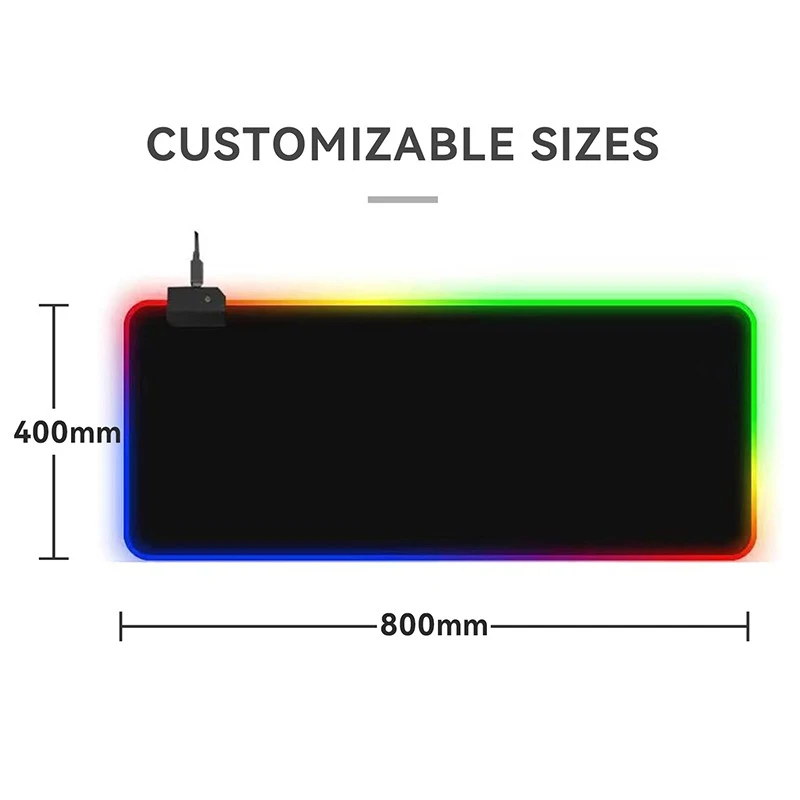
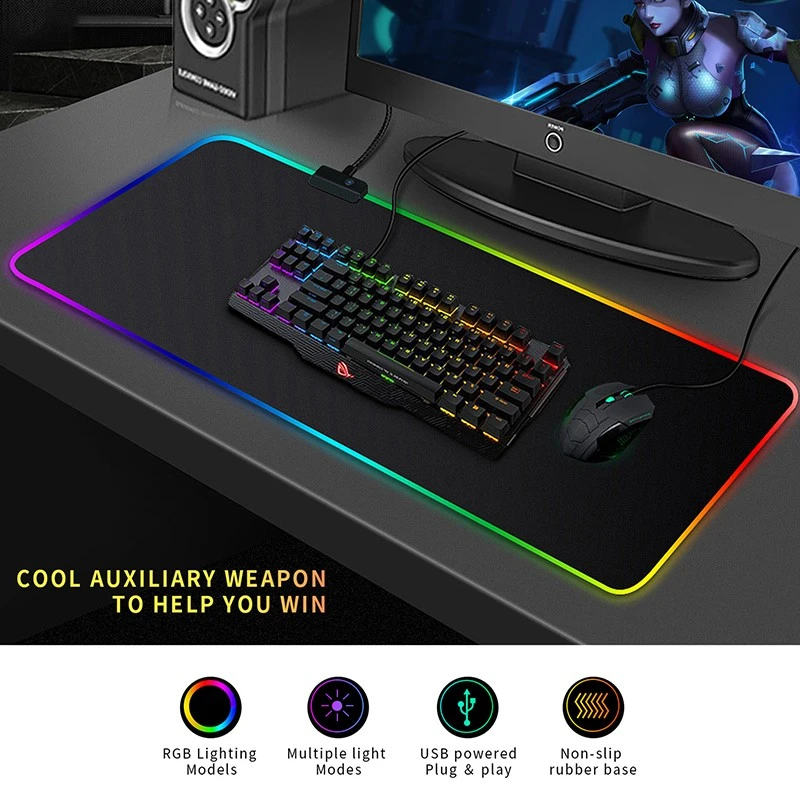
Why Choose Our RGB Gaming Mouse Pads
As a supplier, I can tell you firsthand that our RGB gaming mouse pads are top - notch. They're made with high - quality materials that ensure durability and smooth mouse movement. The lighting effects are bright, vivid, and easy to customize. Whether you're a hardcore gamer or just looking to add a bit of flair to your setup, our mouse pads are a great choice.
If you're interested in purchasing our RGB gaming mouse pads in bulk, or if you have any questions about our products, don't hesitate to reach out. We're always happy to have a chat with potential customers and discuss how we can meet your needs. Whether you're a retailer looking to stock up or an event organizer in need of branded gaming mouse pads, we're here to help. Just drop us a line, and we'll start the conversation.
References
- Manufacturer's user manuals for various RGB gaming mouse pads
- Online forums and communities where gamers share their experiences with RGB lighting customization